
Fix a Corrupt RDP File and Enable MS Teams on Remote Desktop
Here’s a common problem with editing RDP files that is easily fixed. As soon as an RDP connection file is edited, either with the Remote Desktop client or with a text editor like Notepad, Remote Desktop Connection reports the file as corrupt when it loads it.
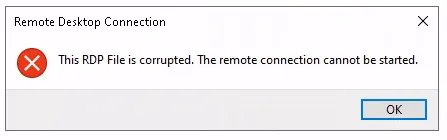
The reason is that the RDP file is signed, and the connection properties are part of the signature. Change a property and the signature no longer matches. The fix is to remove the signature: delete the last two lines of the file in a text editor.
Remove the RDP file signature
-
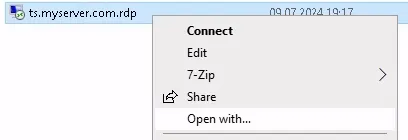
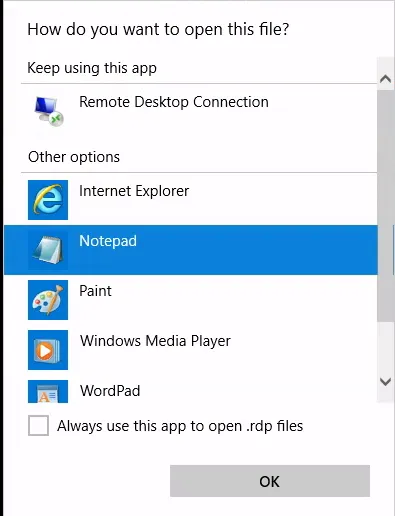
Right-click the RDP file and choose Open with…, then open it with Notepad.
-
Delete the two lines starting with
signscope:andsignature:(the selected text in the screenshot).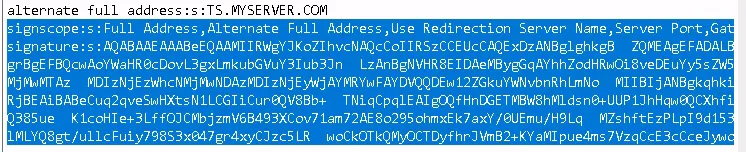
-
Save the file and open it with Remote Desktop Connection.
Full RDP file
For reference, here’s a full RDP file without a signature. The server names are placeholders. It has been adapted to:
- not connect local drives and printers, and
- forward local audio, microphones and webcams, for example to use MS Teams on the remote desktop.
redirectclipboard:i:1
redirectprinters:i:0
redirectcomports:i:0
redirectsmartcards:i:0
devicestoredirect:s:*
drivestoredirect:s:
redirectdrives:i:0
session bpp:i:32
prompt for credentials on client:i:1
server port:i:3389
allow font smoothing:i:1
promptcredentialonce:i:1
videoplaybackmode:i:1
audiomode:i:0
audiocapturemode:i:1
redirectdirectx:i:1
gatewayusagemethod:i:2
gatewayprofileusagemethod:i:1
gatewaycredentialssource:i:0
full address:s:TS01.MYSERVER.COM
gatewayhostname:s:ts.myserver.com
workspace id:s:ts01.myserver.com
use redirection server name:i:1
loadbalanceinfo:s:tsv://MS Terminal Services Plugin.1.Full_Desktop_Ses
use multimon:i:1
alternate full address:s:TS01.MYSERVER.COM